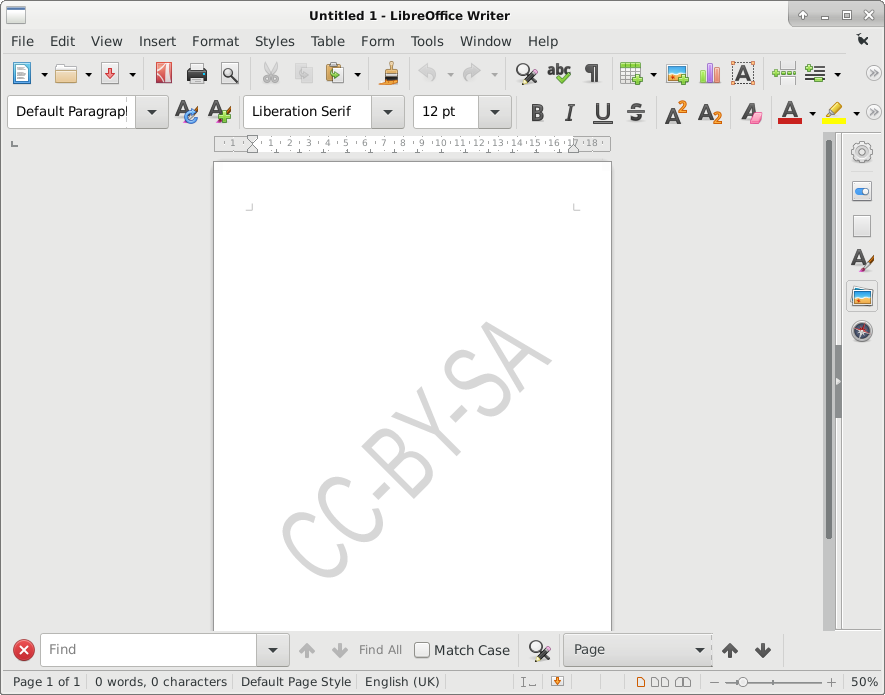
A watermark, is text or graphic on the page that appears behind the main text. They are used to for example display status of the document e.g Draft, Final, or copyright information for example CC-BY-SA CC-BY-NC for example.
To insert a watermark on the page.
Format menu —> Watermark
Brings up
Opacity is now light / Dark it will appear, the higher the percentage, the lighter it is. You can also change font, colour etc.
Once you have created a document, you can either send via e-mail or print the document for display, if a poster, or handing out if a flyer for example.
Printing generally has two parts.
Print preview, as suggested displays a preview of what your page will look like. You can check you are happy with everything before printing.
Pressing the print preview icon on the right will give you
You can check you are happy with the layout before pressing print, or click Close Preview
Pressing Close preview will take you back to your document.
Printing
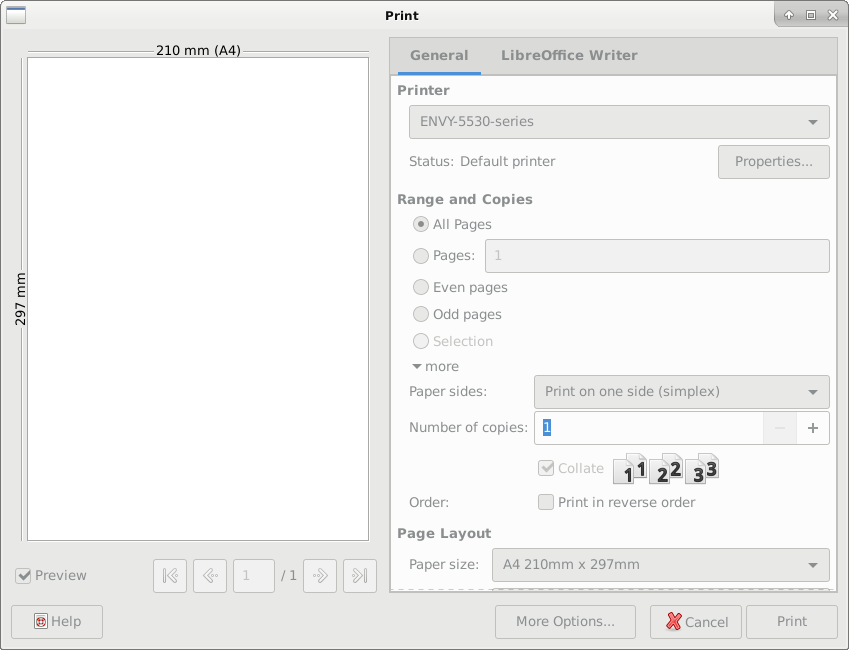
Pressing the print icon on the left will bring up the printer dialogue box.
For example; Which pages to print or all pages, order, (reverse printing will print first page last, saving having to re-order manually)
From here you can select how you want to print your document. Clicking more gives you some more options:
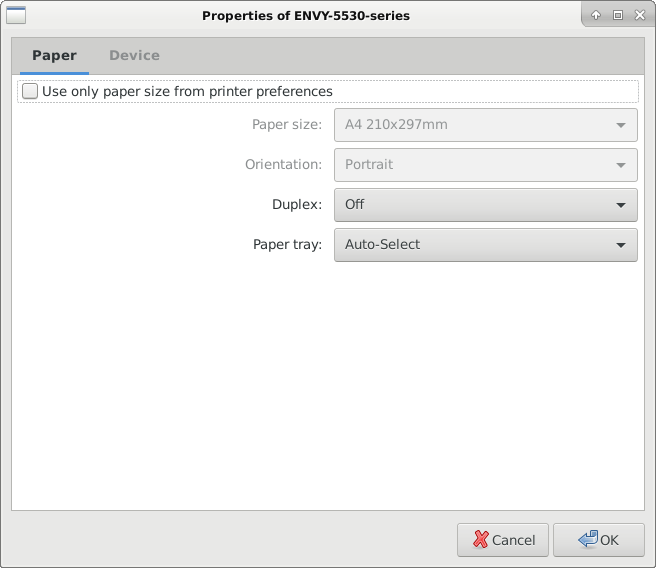
This is handy if your printer supports duplex, print double sided to save paper.
Clicking on Properties —> Device Tab, gives you the option to print in Colour or Black and White, and select print quality, which saves on ink / toner.
Properties —> Paper tab, allows you to set paper size.