Paul Sutton

Paul Sutton – personal blog

Templates

How to create a writer template.

A template is useful, if you want to pull in a document with some pre-defined content and formatting, for example:

  • Double lined spacing
  • A title, header / footer
  • A letter template

To create a template

  1. Create a normal writer document, create the content, you then need to save this as a template.
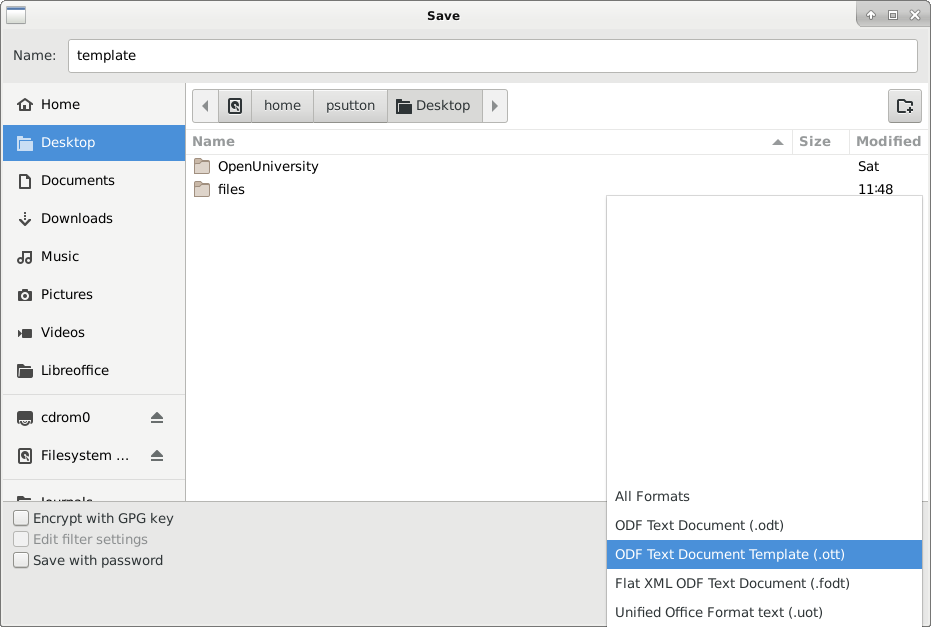
Save As Template

This will create filename.ott file (note the ott extension.

  1. If you want to add this to the list of templates then:-

Goto Manage templates from the templates menu on the main screen
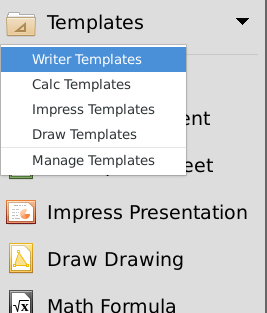
Manage Templates 1

Which brings up

Template Manager

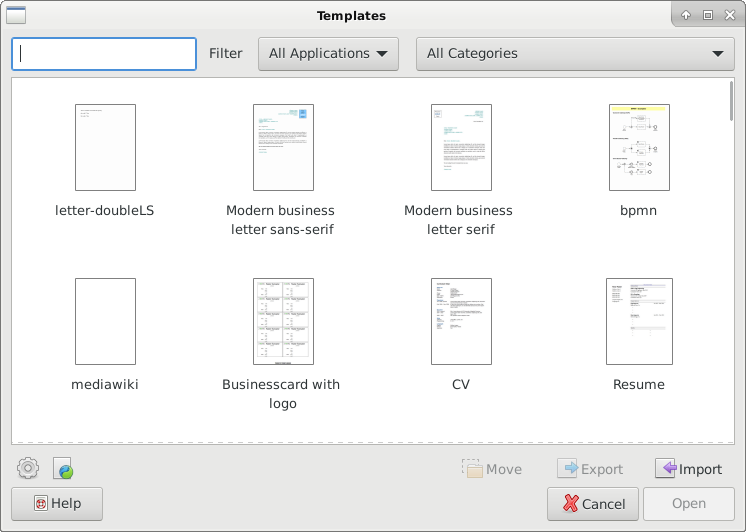
  1. Click on import and select the template you saved earlier.
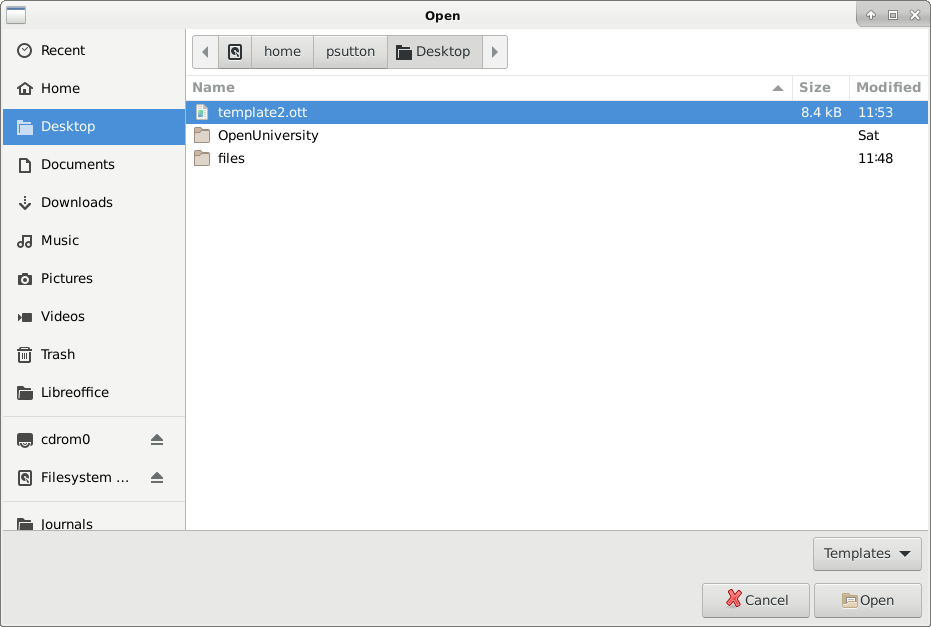
Select Template

You should now be able to select your new template from the LibreOffice Start up screen.

Once opened, saving any additional information to the template will force SaveAs so you then save as a normal odt (or other) document.

Under manage templates you can sort these and only list specific templates e.g My Templates

List by Category

Creative Commons Licence
This work is licensed under a Creative Commons Attribution-ShareAlike 4.0 International License

Support

You can get help / support on IRC with the widget below.

Server : set to irc.libera.chat/6667 (TLS) Channel : set to #libreoffice

This is IRC:

Please,

  1. Don't ask to ask just ask
  2. Be patient
  3. Be clear as to what you are asking

If you need a different kind of support, this is available but you generally have to PAY FOR IT.

#libreoffice,#support,

Active Galaxies

Shaping Galaxies with Supermassive Black Hole Winds

Tuesday 1st December

So following on from Septembers lecture, the Space telescope science institute present their next lecture.

With details here

You can find more upcoming (monthly) lectures below.

http://www.stsci.edu/public-lectures

#video,#astronomy,#space,#science,#stsci

I joined Mastodon social network last year. I am now reposting this guide to signing up and getting started.

Firstly you need to go to join mastodon where you will be presented with the following:-

mastodon1

Clicking on Get Started actually takes further down the page to:-

mastodon2

Where you can select from one of the many instances available, your choice may be influenced by:-

  • Geographical location
  • Interests
  • Number of users on a particular instance

Or some other reason.

I decided to go for quto.org as this is a STEM related instance. So clicking on the signup link.

signupscr

Filled in the credentials. After which I am asked to confirm. You will be asked to agree to some terms and conditions too.

confirm

Once confirmed you are taken to a set of 3 intro pages:

confirm

confirm

confirm

Then you are presented with

confirm

Where you can now set up your profile etc.

— Finding people to follow.

Enter their fediverse id in to the search box.

search

Usually this takes the form of

@username@instancename

You can follow me on the above qoto.org server by clicking this link.

In order for you to see items from my blog in your feed you need to take the following step in your profile settings.

sub->feed

Which is pretty easy to do, clearly this gives you a lot of control over what is then fed in to your feed.

Conclusion

Very easy sign up process, which is great, it looks like this instance also supports inline $\LaTeX$ which is cool too. I have now subscribed to this blog from mastodon.

Not quite ready to #deletetwitter yet, I have some contacts. Compared to the sign-up process on more old fashioned social media this is a breeze.

tags

#social,#network,#fediverse,#mastodon,#freedom,#privacy,#federation,#deletefacebook,#deletetwitter

You can find me on Friendica at [email protected]


cc-by logo

Licenced under Attribution 4.0 International (CC BY 4.0)

0AD Screenshots

So following on from the recent mini games conference talk on 0ad. The video for the talk is below

0ad talk

I am including below a few screenshots from the game.

Opening Screen Opening Screen Main building Main Building, to build units Roman Warship Roman warship

#Games,#0ad,#screenshots,#minidebconf,#video

Page Orientation

By default, a document is in Landscape, so the long edge is at the side. If you are producing for example a document with a lot of data going left to right you may need to switch orientation.

You can do this from the Format —> Page Styles option.

Page Styles

This allows you to switch your DOCUMENT to Landscape, so the long edge is at the top, or back to portrait.

portrait

landscape

You can also use the Insert menu to add a new page which is a different orientation, this uses page breaks.

Creative Commons Licence
This work is licensed under a Creative Commons Attribution-ShareAlike 4.0 International License

Torbay Covid 19 restrictions 28/11/2020

From Thursday 5 November until 00.00 Wednesday 2 December, you must:

  • stay at home, except for specific purposes
  • avoid meeting people you do not live with, except for specific purposes
  • close certain businesses and venues.

From December 2nd Torbay is in Tier 2.

#covid,#health,#advice

EmacsConf 2020

Emacs conference 28th & 29th November 2020

https://emacsconf.org/

Open Terminal here

If, like me you find yourself dropping to the terminal to, perhaps say git push files to gitlab. You need to keep navigating to the directory where the files you want to push are located.

XFCE4'S Thunar file manager has a short cut to this. Right *click**, select Open Terminal Here and you drop to that directory in the terminal.

Open Terminal Here

Video below for illustration.

COVID 19 TIER ALERT LEVEL

The UK government has announced restrictions and alert levels each area will go in to after coming out of the national lock down on December 2nd. These depend on the regional cases and alert levels.

It looks like Torbay is in

Please also see

  • Torbay page for local updates and restrictions.

#UK,#Torbay,#covid19,#alert,#level,#restrictions,